
What Salora is
Salora runs the whole salon in one place: a live queue with honest wait times, bookings and walk-ins, billing and payments, cash, customers and loyalty, staff attendance and service tracking, for one chair or many branches. Everything is connected: when a stylist finishes early, the queue moves, the wait times update and the customer's phone shows it.
| App | Who uses it | What for | Runs on |
|---|---|---|---|
| Salora Manager | Owners, managers, receptionists, accountants | Live queue, bookings, billing, card machines, cash, expenses, customers, staff, attendance, team, services, reports, settings | Windows 10/11, macOS |
| Salora app | Customers, and stylists in Staff mode | Find salons, join the queue, book, track the turn; staff check in and start and end services | Android, iPhone |
| Salon web page & tracking | Walk-ins and anyone without the app | Join the queue or book from a QR code or link; follow the turn live | Any browser |
Getting started
- Talk to Jesora Labs. Tell us your branches and team size; we recommend a plan and send a quote. Write to support@jesoralabs.com.
- We set you up. Jesora Labs creates your salon, its first branch and your owner sign-in, and sends you the sign-in, the Salora Manager installer and your QR poster.
- Install Salora Manager and sign in. Choose your own password at the first sign-in.
- Add your services and team. Services with prices and durations (Services), employees with their skills and shifts (Staff), and the people who use Salora Manager (Team & roles).
- Put up the QR poster (Settings › QR codes & links) at the reception, mirrors and window. Customers scan to join the queue or book.
- Run the day. Add walk-ins, start and end services, make bills. Stylists use Staff mode on their phones.
Signing in
- Owners sign in with the email and temporary password from Jesora Labs, then choose their own password.
- Team members and stylists get a username (or email) and a temporary password from the owner, and choose their own password at the first sign-in.
- Forgot your password? On the sign-in screen use Forgot password? to get a code by email, or Email me a code to sign in with a code.
- No SMS is needed for anything in Salora.
Your name at the top right opens one menu: who you are, the theme (light, dark or follow the computer, remembered on this computer) and Sign out. The Salora app has the same choice under Account › Appearance.
Salora Manager tour
The menu on the left is grouped the way the day runs. You see only the pages your role allows.
| Group | Pages |
|---|---|
| Today | Dashboard Live queue Bookings |
| Money | Billing Cash register Expenses |
| People | Customers Staff Attendance Reviews Team & roles |
| Salon | Services Reports Settings |
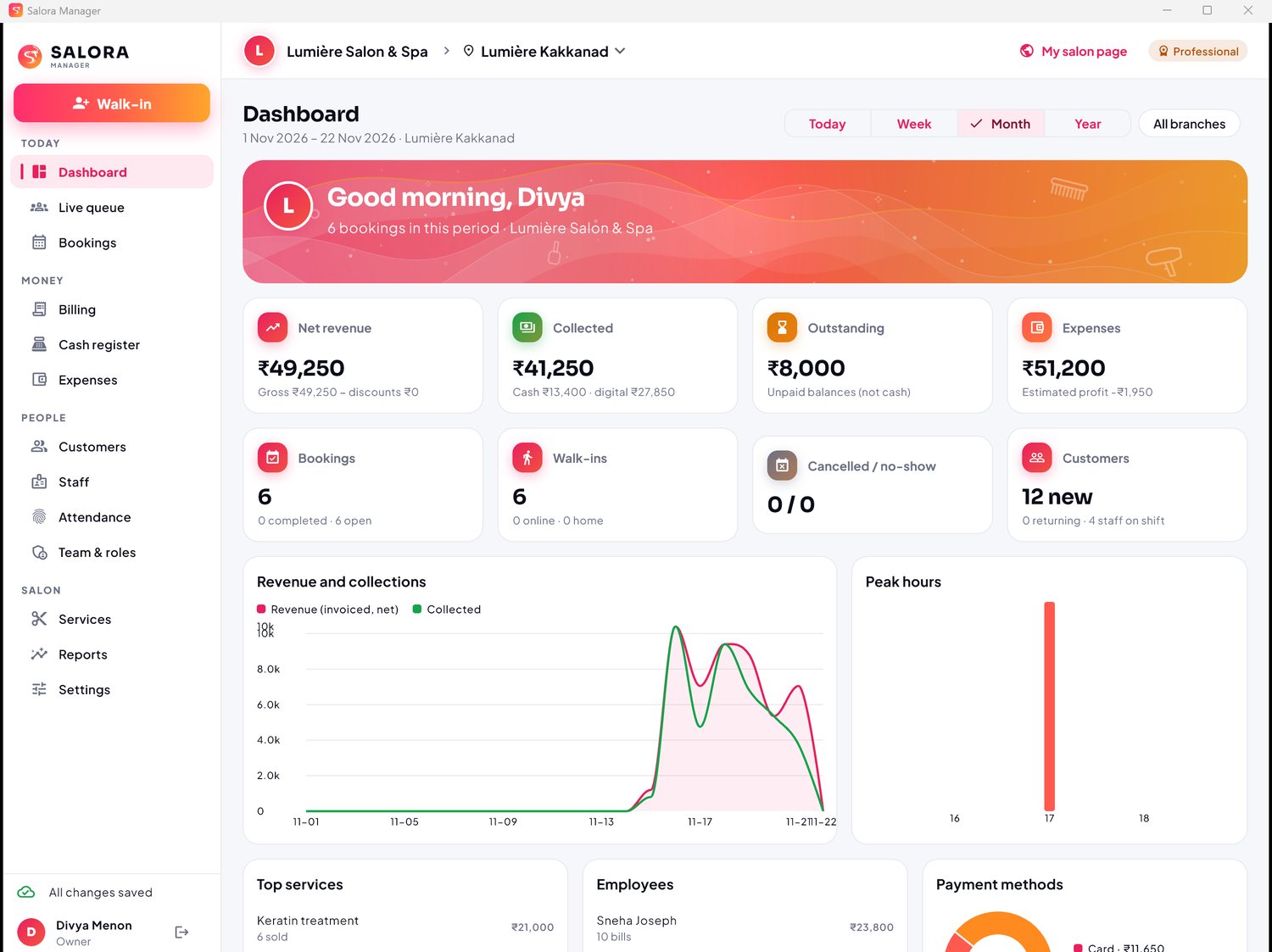
At the top: your salon and the branch switcher (each branch has its own queue, register and reports), My salon page, and the big Walk-in button (Ctrl+N).
Walk-ins and the live queue
Add a walk-in
- Press Walk-in or Ctrl+N.
- Choose or add the customer (name is enough; phone and email are optional), the services and, if they ask, a preferred stylist.
- The next screen shows the token (for example A-014), the estimated wait as a range and a QR code. Press Send on WhatsApp to send the live tracking link from your own WhatsApp.
Run the queue
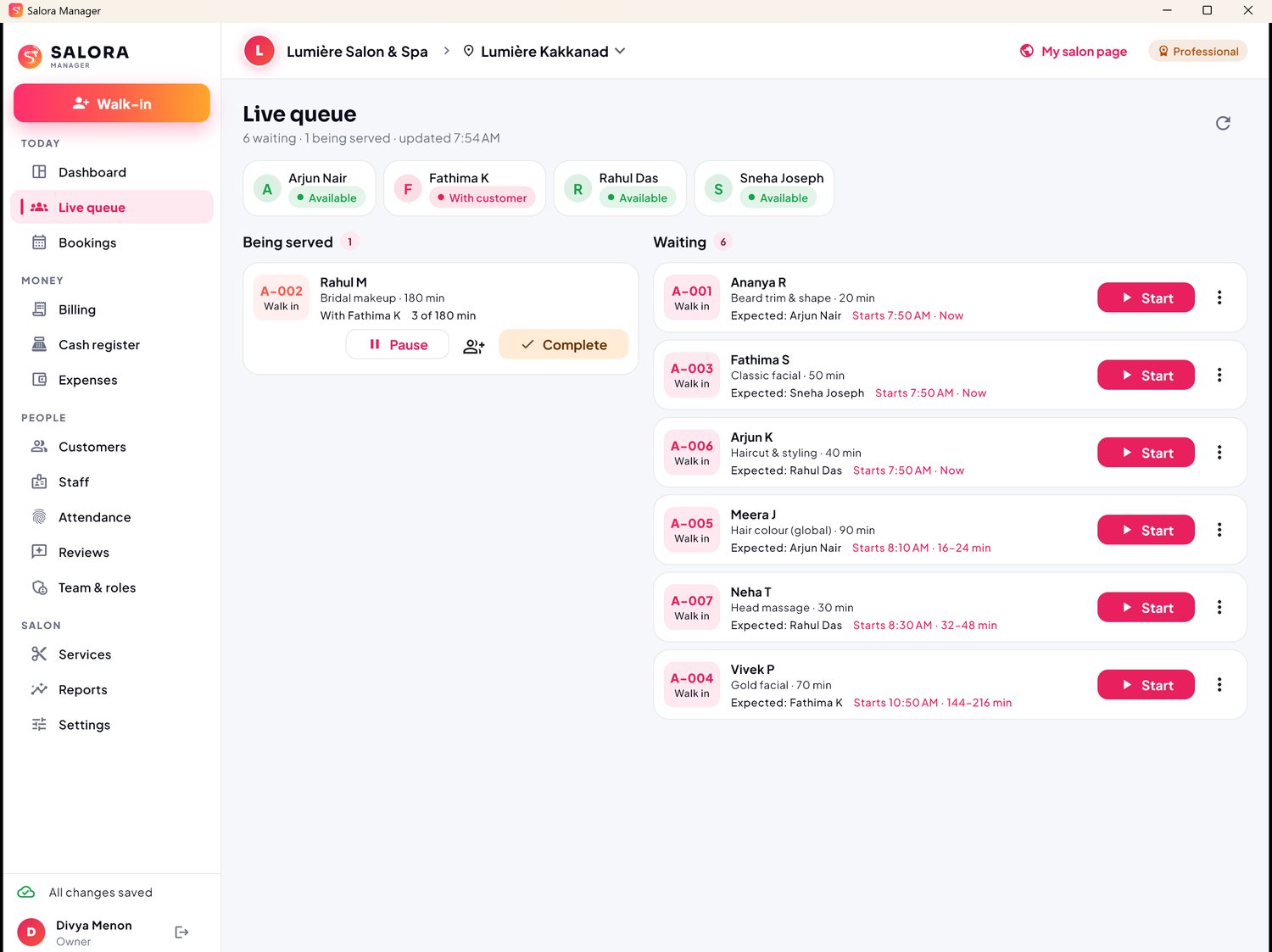
Live queue shows who is in service, with a timer that leaves out pauses, and who is waiting, with their estimated start and stylist.
- Start a service and choose who serves; Pause and Resume; add a helper for long work such as bridal.
- Complete the service, then create the bill straight away.
- Move customers up or down, give priority, assign a stylist, mark a no-show or cancel.
Bookings and appointments
- Bookings shows appointments, online bookings and home visits as a calendar or a list, per branch.
- Free times come from real availability (stylists' shifts, skills, breaks and other bookings), so nothing is booked twice.
- Check in a customer when they arrive, reschedule, cancel or mark a no-show. Customers who booked online can also cancel from the app or their tracking page, within your cancellation policy.
- Online booking and walk-ins can be switched on or off per branch (Settings › Branches).
Billing and payments
Make a bill
- From a completed service (the queue offers it), or Billing › New bill for a quick sale.
- Add extra items, a bill discount and, for a customer with points, the points to use. Membership discounts come off by themselves.
- Take payment now (several methods, for example ₹500 UPI + ₹500 cash) or leave it to collect later: the rest shows as outstanding.
Take a payment on an existing bill
Open the bill and press Take payment: Cash, UPI, Card or Bank, the amount (less than the balance is a partial payment) and a reference such as the UPI reference or the card's last four digits. With the card machine add-on, Card machine sends the amount to the machine (see Card machines).
Refunds, voids and cancellations
- Refund returns all or part of a payment, with a reason. Cash refunds come out of the open register. Online payments are refunded to the customer's card or UPI automatically.
- Void is only for a payment entered by mistake. It stays visible, crossed out, with the reason. Online and card machine payments cannot be voided; refund them instead.
- Cancel invoice (with a reason) for a bill that should not exist. Nothing is ever deleted or overwritten.
Printed and PDF invoices
Press the printer icon on a bill for an A4 invoice with your logo and colour, GSTIN, items, taxes, payments and balance. The print window can save it as PDF for email or WhatsApp.
Online payments Professional and up
Customers can pay when they book in the Salora app. The payment is confirmed by the payment provider, not by the app, and appears on the booking and later on the bill as "Paid online".
Card machines Add-on
Connect the card machine at your counter so the bill amount goes straight to the machine. The customer taps, inserts or scans a UPI code on the machine, and Salora records the payment on the bill by itself. Nobody types the amount twice, and no payment is ever missed or recorded twice.
What you need
- The card machine add-on, switched on for your salon by Jesora Labs.
- A Razorpay POS card machine on your own Razorpay POS merchant account. The money is settled to your account by Razorpay, as before.
- The machine's serial number, and the app key and username from your Razorpay POS account (ask Razorpay POS support for "cloud / P2P API" access).
Set it up (once)
- Salora Manager › Settings › Card machines › Add card machine.
- Give it a name (for example "Front desk"), choose the branch, the provider Razorpay POS, and type the device serial number, app key and username.
- Save. The app key and username are stored encrypted and are never shown again; type them again only to change them. Switch a machine off with In use.
Take a payment
- Open the bill and press Card machine.
- Choose the machine, check the amount (it starts at the balance due; less is a partial payment) and choose Card or UPI, Card or UPI.
- Press Send to machine. The amount appears on the machine and Salora shows "Waiting for the customer…".
- When the customer pays, Salora shows Paid with the card type, last four digits and approval code, and the payment is on the bill. Press Done.
| If… | What happens |
|---|---|
| The card is declined or the customer cancels on the machine | Salora shows Not paid with the reason. Nothing is recorded. Press Try again or take another method. |
| You need to stop | Press Cancel on machine. If the customer had already paid, the payment is kept and recorded. |
| You closed the window while waiting | The bill shows "Waiting on the card machine" with Open to carry on. |
| Nobody pays for 15 minutes | The request ends by itself as not paid. |
| The machine charged a different amount, or the bill changed meanwhile | Nothing is recorded automatically. The bill shows Check this payment with the details, so you can record it or refund it on the machine. |
Without the add-on, record card payments as Card in Take payment, with the last four digits as the reference.
Cash register and expenses Starter and up
- Cash register › Open register with the opening float (Salora suggests yesterday's counted cash).
- Cash payments and cash refunds go in and out of the open register by themselves. Add cash in and cash out movements with a note.
- At closing, count the drawer and enter the amount: Salora shows expected against counted cash and the difference.
- The page keeps a history of the last 30 registers: date, till, opening float, counted cash and difference.
- Expenses: record spending by category and branch, paid from the register or elsewhere, with vendor and reference.
Customers
- Customers lists everyone with phone or email and visit count. Search by name, phone, email or booking ID, or filter: VIP, outstanding, inactive, new.
- New customer registers a walk-in so their visits, bills and points are kept. Phone and email are optional.
- A customer's page shows their bookings, bills, statement (what they owe and paid), notes, VIP flag, points and membership.
Loyalty points and memberships Professional and up
Loyalty points
Settings › Loyalty & memberships: switch points on and choose points per ₹1, the value of a point, the minimum to redeem, the most points can pay of a bill, and when unused points expire.
- Customers earn points when a bill is fully paid; they are taken back if it is refunded.
- When you make a bill for a customer with points, the bill shows their balance. Type the points to use and they come off as a discount. Cancelled bills give the points back.
- Adjust points on the customer's page corrects a balance, with a reason.
Memberships
Create memberships (name, price, days, discount %) in the same tab. On a customer's page, Sell membership adds a bill for it and starts the membership today (a renewal continues from the current end date). While it is active, its discount comes off every bill by itself.
Reviews
After a completed visit, customers rate it (stars, the stylist and a comment) in the Salora app or on their tracking page; each visit can be reviewed once. Reviews shows your average and every review. Reply in public, or report a review that breaks the rules to Jesora Labs. Ratings on the map and your salon page update by themselves.
Staff and services
Services
Services: categories, services with price, duration and tax, branch prices, and packages. Durations are the starting point for wait times; Salora learns your real times as you work.
Employees
Staff › Add employee: name, role title, the services they do (this decides who can serve whom in the queue), commission, home visits and weekly shifts (or "works opening hours").
- Type a username or email under Staff mode sign-in to give them the Salora app; Salora shows their temporary password once.
- Each card's menu sets their status (Available, Break, Away) and checks them in or out, for example if they forgot their phone.
Attendance Professional and up
Attendance shows each check-in and check-out with hours, breaks, the planned shift and flags for late arrival and early departure (more than 10 minutes).
- Correct a record (a reason is required) or Add record for a missed day. The clock icon shows the full history with before and after values.
- Summary gives days, hours, late and early counts per employee; the download icon exports CSV.
Team and roles
Team & roles › People › Add person: name, a username and/or email, a role and their branches. Salora shows a temporary password once (copy it or send it on WhatsApp). Later you can change the role or branches, give a new temporary password, or turn off their sign-in.
| Role | What they can do |
|---|---|
| Owner | Everything, including the plan and roles. |
| Manager | Everything except the plan and roles; corrects attendance. |
| Receptionist | Queue, walk-ins, bookings, customers and billing. |
| Accountant | Billing, cash, expenses and financial reports. |
| Employee | Staff mode only. |
Custom roles Business and up: Roles & permissions › New role, then tick exactly the permissions they need. You can only give permissions you have yourself.
Dashboard and reports
Dashboard: net revenue, collected (cash and digital), outstanding, expenses, bookings, walk-ins, no-shows and customers, for today, the week, the month or the year, for one branch or all.
Reports: employee performance (customers served, real against planned minutes, service hours, sales, hours worked, late arrivals), bookings, sales, payments, outstanding, expenses and staff commission. Export CSV opens in Excel Professional and up.
Settings and branding
| Tab | What you do there |
|---|---|
| Salon | Name, phone, email, legal name and GSTIN for invoices, description, and whether you appear in the Salora app's map and search (your QR codes work either way). |
| Branding | Your logo (square works best; shown round) and colour, used on your screens in the app, your web page, receipts, QR posters and Salora Manager. |
| QR codes & links | Permanent links and QR posters (see below). |
| Branches | Address, map position, hours, walk-ins and online booking (see below). |
| Loyalty & memberships | Points rules and memberships. |
| Card machines | Your connected card machines (add-on). |
| Plan | Your plan, period, limits and the features and add-ons included. |
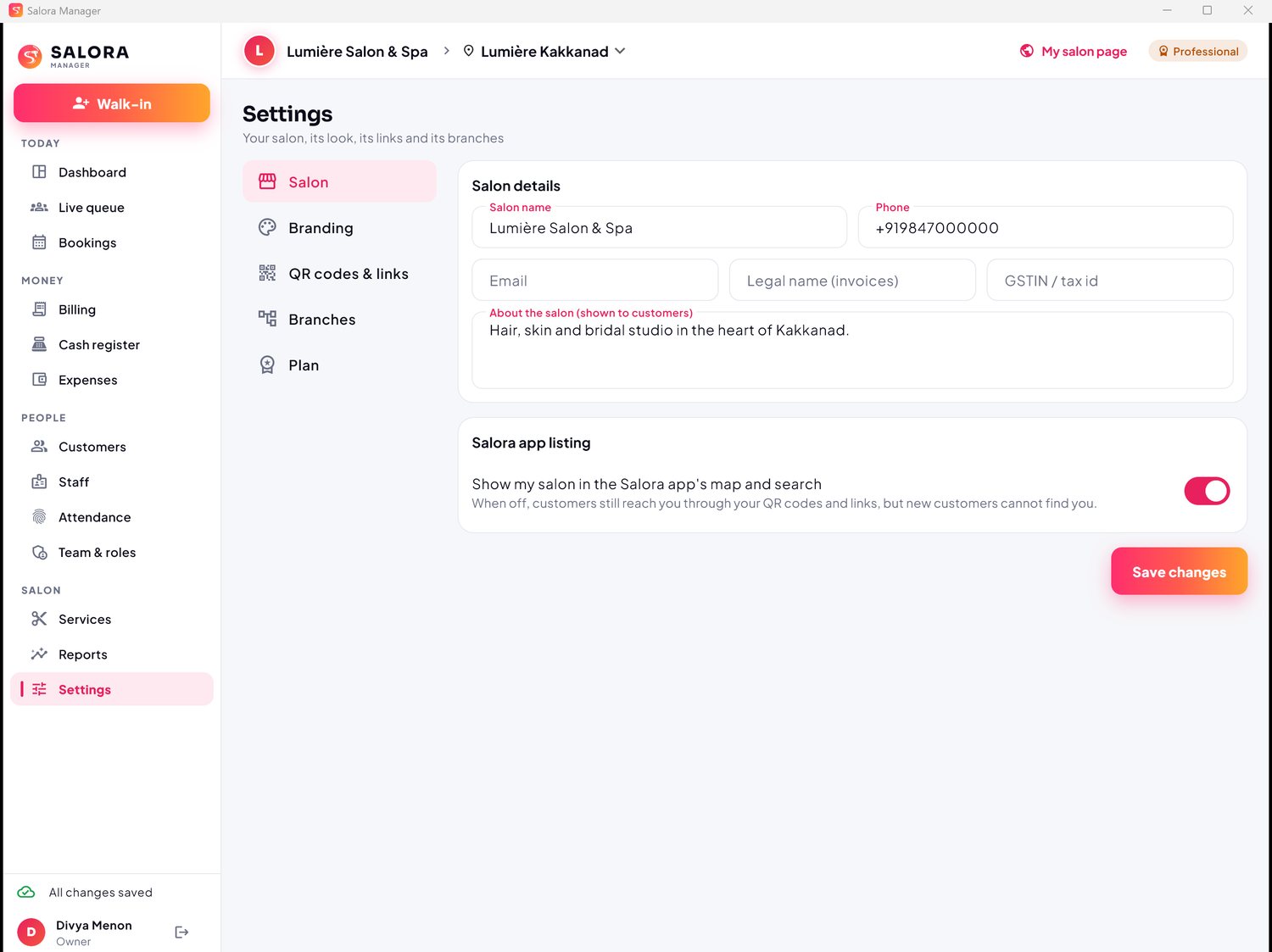
Jesora Labs can also set your logo, colour and map pin for you during set-up.
QR codes and links
Every branch has one permanent link and QR code, plus one for all branches. They never change, so print them once.
- Print poster or Save PDF for the reception, mirrors and window.
- Copy link for Instagram, WhatsApp, Google Maps and your website.
- Scanning opens your salon page in any browser, or the Salora app when it is installed.
Branches
Settings › Branches: add and edit branches with address, map position, phone, opening hours and holidays, walk-ins and online booking on or off, home services and cancellation policy. Each branch has its own queue, cash register, QR code and reports; staff can work in more than one. The number of branches depends on your plan.
Staff mode
- Install the Salora app (Android or iPhone). Go to Account and sign in with the username or email and temporary password from your salon; choose your own password.
- The Staff tab appears. Press CHECK IN when you arrive and CHECK OUT when you leave; set Available, Break or Away.
- Your customers appear with their token. Press START SERVICE, PAUSE and RESUME if needed, and END SERVICE when done. The timer and progress bar show elapsed against planned time.
For customers
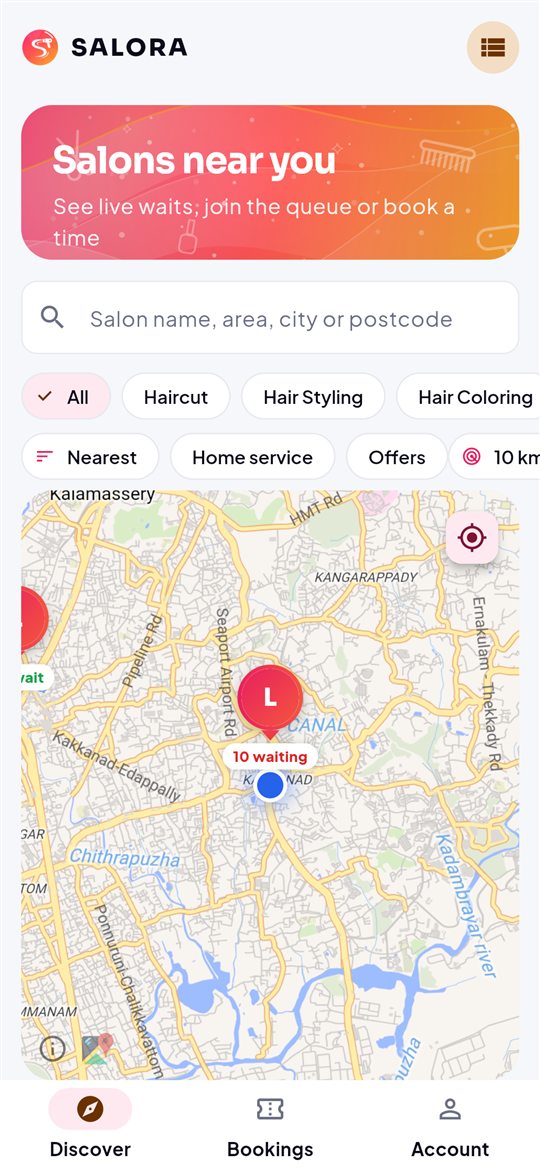
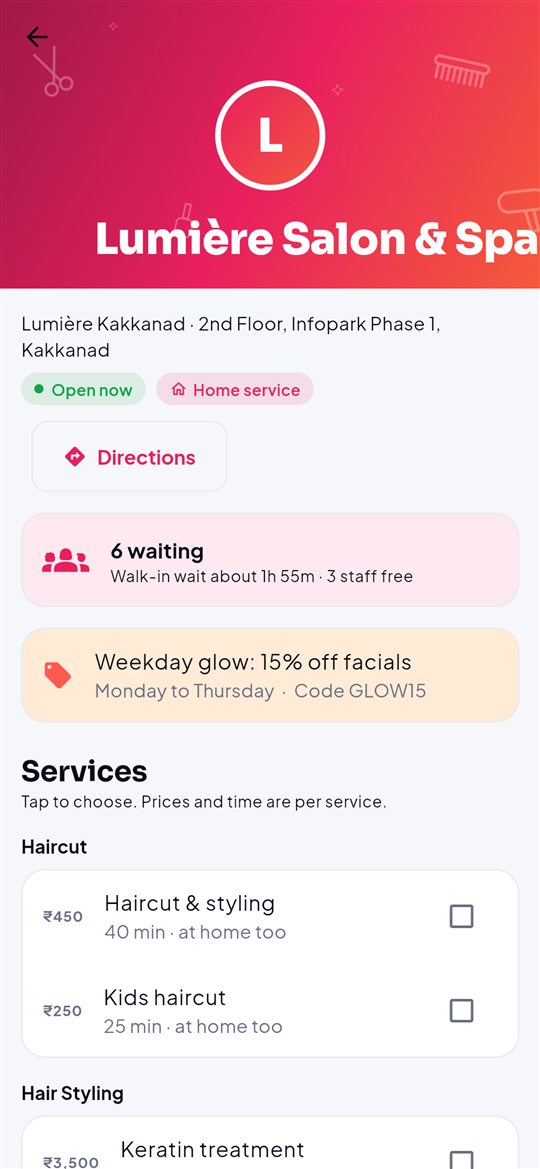
- Discover: salons nearby on a map (logo pins with their live queue) or as a list. Search by name, area, city or PIN code; filter by category, home service and offers. "My salons" keeps the ones you scanned or visited.
- Join or book: choose services and see the total, then join the queue now, pick an appointment time, or ask for a home visit where offered. Pay at the salon, or online where the salon offers it.
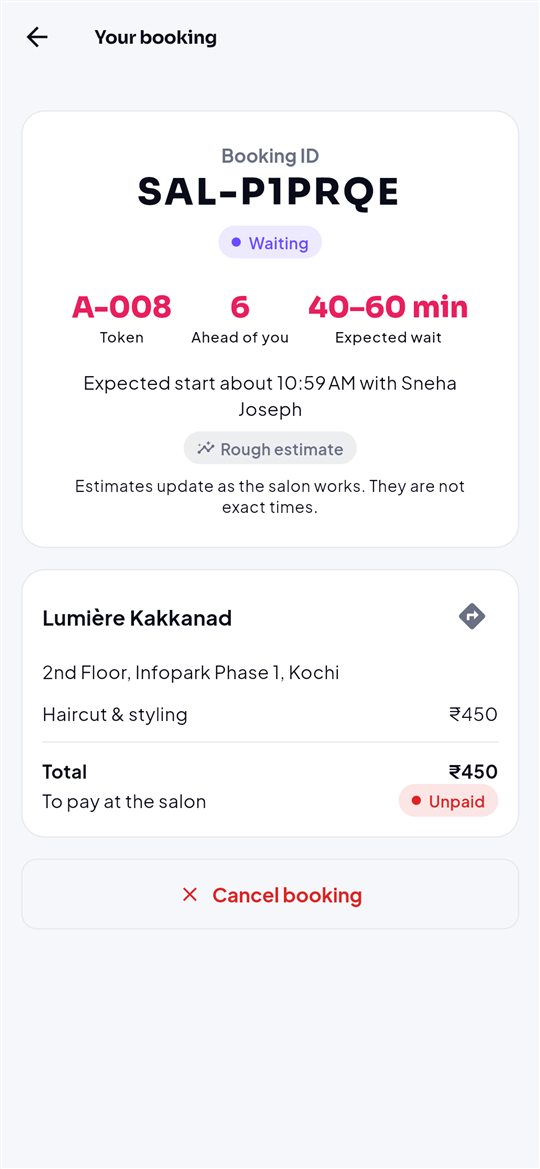
- Bookings: your token, people ahead, the expected wait as a range and the expected start, updated as the salon works. Cancel in one tap.
- After the visit: rate it, collect loyalty points and rebook quickly.
- Signing in is optional: email or username with a password, or an email code. Each salon's screens use its own logo and colour.
Web page and tracking (no app)
- Your QR code or link (
salora.jesoralabs.com/s/your-salon) opens your salon page in any browser: services, live wait, join the queue or book. - Customers confirm with a code sent to their email, then follow their turn on a live tracking page (
/t/booking-id) and can cancel there. - Walk-ins you add at the desk get the same tracking link: Send on WhatsApp sends it from your own WhatsApp, with no business account and no SMS costs.
How wait times work
Salora does not multiply the number of people by an average. It works the queue out stylist by stylist, the way a good receptionist would:
- who is free, who is busy and how far along each service is;
- who can do which services, and preferred stylists;
- breaks, shift ends and booked appointments, which are kept free;
- how long services really take in your salon, with pauses left out.
Estimates are shown as a range with a confidence label (rough, good, reliable). They update whenever a service starts, ends or pauses, someone joins or leaves, and every minute in the background.
Plans and add-ons
Every plan includes the live queue, bookings, billing, the Salora app for customers and staff, your logo and colour, and QR codes. Plans can be changed up or down at any time. Contact us for pricing.
| Plan | For | Branches · staff | Adds |
|---|---|---|---|
| Free | Trying Salora | 1 · 3 | Live queue, bookings, billing, branding, QR, app listing |
| Starter | One busy branch | 1 · 8 | Cash register, expenses, offers and coupons, reports |
| Professional | Growing teams | up to 3 · 25 | Online payments, attendance, CRM, home services, commission, loyalty points, memberships, CSV exports |
| Business | Chains and premium salons | up to 10 · 100 | Custom roles, branded web app, gift cards, campaigns, priority support |
| Enterprise | Large groups, your own brand | Unlimited | White-label desktop app; your own store app as an option |
Add-ons
Jesora Labs can switch single features on for your salon without changing your plan: card machine connection, custom roles, branded web app, loyalty and memberships, online payments, attendance, exports, advanced analytics, priority support, a white-label desktop app and your own store app. Extra branches or staff can also be added. Add-ons stay when you change plan.
When a paid period ends, you get a few grace days; after that the salon moves to Free. Your data is never deleted.
Security and privacy
- Every salon's customers, staff, bookings and money are kept separate, and every request is checked on our servers.
- Your team sees only the branches and features their role allows. Changes to money (refunds, voids, cancellations) need a reason and are kept in the history.
- Online card and UPI payments go through Razorpay's secure checkout, and card machine payments stay on the machine: Salora never sees card numbers.
- Card machine credentials are stored encrypted. Jesora Labs support can only enter your salon with a one-time code, and everything done is recorded.
- Hosted in the cloud with daily backups. See the privacy policy and terms.
FAQ and troubleshooting
Do my customers need the app?
No. Your QR code and tracking links open in any browser. Regulars can use the free app for bookings and history.
What do I need at the salon?
A Windows or Mac computer, an internet connection and your staff's phones. A printer helps for invoices and QR posters. A card machine is optional.
Does Salora work with my card machine?
With the card machine add-on, Salora connects to Razorpay POS machines on your own Razorpay POS account. With any other machine, take the payment on the machine and record it as Card in Take payment.
The card machine shows nothing after "Send to machine".
Check the machine is on, connected to the internet and signed in to the Razorpay POS app; check the serial number in Settings › Card machines. Press Cancel on machine and try again.
I forgot my password.
Use Forgot password? on the sign-in screen to get a code by email. Team members can also ask the owner for a new temporary password.
A stylist cannot sign in to Staff mode.
In Staff, check they have a Staff mode sign-in and their account is on in Team & roles. Give them a new temporary password if needed.
Wait times look wrong.
Make sure stylists are set Available, their services (skills) are right, and services are started and ended in Salora. Estimates improve as Salora learns your real service times.
"Not yet synced" appears on an entry.
The internet dropped while you worked. The entry is kept as a draft and sent when the connection returns; press Sync now in the menu to send it at once.
A feature says it is not in my plan.
Some features need a higher plan or an add-on. See Settings › Plan for what is included, and write to us to change it.
Downloads and contact
Salora Manager is installed by Jesora Labs when your salon is set up. Questions, set-up and support: support@jesoralabs.com.
Nothing matches that search. Try another word, or write to support@jesoralabs.com.